Home
Welcome to the documentation of Dicio, the free software voice assistant for Android. This website contains information on how to use specific features of Dicio, as well as how to contribute to its development, and how to do maintainer tasks.
Project structure
- Main repository with Android App and skill interfaces: dicio-android
- Domanin specific language and parser for skill sentences: dicio-sentences-compiler
- Multilanguage number parsing and formatting library: dicio-numbers
- Testing workbench to evaluate language matching algorithms: dicio-evaluation
Editing this wiki
You can find the source code of this website here. If you notice a mistake, or want to add a page with useful information, feel free to open a pull request. The policy for merging documentation PRs is to quickly take a look to ensure there are no major mistakes, but to otherwise trust the author and merge the pull request as soon as possible. This is to incentivize writing or amending documentation (just like on Wikipedia you can direclty edit pages).
Translating to a new language
Unlike other Android projects, Dicio’s translatable files are not only the plain strings listed under app/src/main/res/values/strings.xml, but there are additional files that define which sentences the skills should recognize.
Plain strings used in the UI
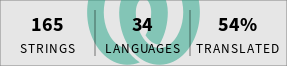
Translate the strings used inside the app via Weblate.
If your language is not already there, add it with tool -> start new translation.
Sentences for recognizing user intent
Translate the sentences used by Dicio to identify a user’s request and to feed it to the correct skill. At the moment this requires manually modifying files in the source code repository. Hopefully in the future a custom translation system, similar to Weblate, will be used for sentences too.
- Fork the main repository and clone the fork using
git. If you don’t know what that means, this and this guide can help. Feel free to reach out for help if you get stuck. - Navigate to
app/src/main/sentences/inside the repository. - If it does not exist already, create a subfolder with the 2- or 3-letter name of your language (in particular, any
ISO-639-compliant language ID is supported). - For each of the skills that have not been translated to your language yet 1, copy the corresponding English file from
en/SKILLNAME.ymlto your language’s folder. If you wish to translate everything, then at the end of this process the list of files under theen/folder should be the same as those in your language’s folder. - Open each of the untranslated skill YAML files and translate the English content. Feel free to add/remove sentences if their translation does not fit into your language and remember those sentences need to identify as best as possible what the user said.
- Do NOT change the name of the copied files, the IDs of the sentences (i.e. the
sentence_id:before each list of sentences) or the IDs of the capturing groups (i.e. the.ID.construct). - To learn about the Dicio sentences language syntax, please refer to the documentation and the example in
dicio-sentences-compiler.
Finally adding the language to the app
-
Once both the Weblate and the sentences translations are ready, add the new language to the app’s language selector. This requires modifying two files. In the following instructions
$iso-language-id$,$ISO_LANGUAGE_ID$and$Language name$are placeholders you should fill in, e.g.en-in,EN_INandEnglish (India).- in app/src/main/proto/language.proto add a new entry to the
Languageenum like so:LANGUAGE_$ISO_LANGUAGE_ID$ = $increasing number$; // $Language name$. Use the previous highest number in the enum incremented by 1 as$increasing number$. The position of the newly added item should make it so that the items are sorted by their language name. - in app/src/main/kotlin/org/stypox/dicio/settings/Definitions.kt add a new item to
languageSetting.possibleValueslike so:ListSetting.Value(Language.LANGUAGE_$ISO_LANGUAGE_ID$, "$Language name$"),. The position of the newly added item should make it so that the items are sorted by their language name.
- in app/src/main/proto/language.proto add a new entry to the
-
Then update the app descriptions so that people know that the language you are adding is supported. The files you should edit are README.md and fastlane/metadata/android/en-US/full_description.txt (the English description for F-Droid).
-
Open a pull request containing both the translated sentences files, the language selector addition and the app descriptions updates. You may want to take a look at the pull request that added German, #19, and if you need help don’t hesitate to ask :-)
-
if you just created the subfolder in the previous step, then none of the skill had been translated before ↩
Adding a new skill
A skill is a component that enables the assistant to understand some specific queries from the user and act accordingly. While reading the following instructions, keep in mind that the javadoc of the methods being implemented serves as documentation, and that the code of the already implemented skills can be used as reference.
Important
Whenever you see
$skill_id$and$SkillId$, replace them with the computer readable name of the skill you want to add, in snake_case and PascalCase, e.g.weatherorWeather.
1. Reference sentences
The new skill most likely needs to interpret user input. The Dicio framework provides a standard way to define how to efficiently match user input and extract information from it, in the form of translatable reference sentences stored in YAML files. Note that for some specific cases the standard recognizer might not be wanted, in which case you can skip this section, and in section 3 extend Skill<> and implement Skill.score() manually, instead of extending StandardRecognizerSkill<>.
-
Edit the
app/src/main/sentences/skill_definitions.ymlfile and add a definition for the new skill:# The unique ID of the skill. - id: $skill_id$ # `SPECIFICITY` can be `high`, `medium` or `low`. # It should be chosen wisely: for example, a section that matches queries # about phone calls is very specific, while one that matches every question # about famous people has a lower specificity. specificity: SPECIFICITY # A list of definitions for the types of sentences this skill can interpret. # Can contain multiple sentences, e.g. the timer skill has the # "set", "cancel" and "query" sentences. sentences: # An ID for the sentence, must be unique amongst this skill's sentences. - id: SENTENCE_1_ID # (optional) If this sentence has some capturing groups, their IDs and # types must be listed here. captures: # An ID for the capturing group, must be unique amongst this # sentence's capturing groups - id: CAPTURING_GROUP_1_ID # Currently only string capturing groups are supported, but in # the future "number", "duration" and "date" will also be possible. # For the moment use "string" and then manually parse the string to # number, duration or date using dicio-numbers. type: string -
Create a file named
$skill_id$.yml(e.g.weather.yml) underapp/src/main/sentences/en/: it will contain the sentences the skill should recognize. -
For each of the sentence definitions in
skill_definitions.yml, write the id of each sentence type followed by:and a list of sentences:SENTENCE_1_ID: - a<n?> sentence|phrase? alternative # ... - another sentence|phrase? alternative with .CAPTURING_GROUP_1_ID. # ... # ... # SENTENCE_2_ID: ... in case you have multiple sentence types -
Write the reference sentences according to the
dicio-sentences-language’s syntax. -
Try to build the app: if it succeeds you did everything right, otherwise you will get errors pointing to syntax errors in the
.ymlfiles.
Here is an example of the weather skill definition in skill_definitions.yml:
- id: weather
  specificity: high
  sentences:
    - id: current
      captures:
        - id: where
          type: string
And these are the example contents of app/src/main/sentences/en/weather.yml:
current:
  - (what is|s)|whats the weather like? (in|on .where.)?
  - weather (in|on? .where.)?
  - how is it outside
2. Subpackage
Create a subpackage that will contain all of the classes you are about to add: org.stypox.dicio.skills.SKILLID (e.g. org.stypox.dicio.skills.weather).
3. The Skill class
Create a class named $SkillId$Skill (e.g. WeatherSkill): it will contain the code that interprets user input (i.e. the score() function) and that processes it to generate output (i.e. the generateOutput() function). The next few points assume that you want to use the standard recognizer with the skill definition and sentences you created in step 1. In that case score() is actually already implemented and you don’t need to provide an implementation yourself.
- Have the
$SkillId$Skillclass implementStandardRecognizerSkill<$SkillId$>. You can import the$SkillId$class withimport org.stypox.dicio.sentences.Sentences.$SkillId$. TheSentences.$SkillId$sealed class is generated based onskill_definitions.yml, and contains one subclass for each of the defined sentence types. - The constructor of
SkilltakesSkillInfo(see step 5), and moreover the constructor ofStandardRecognizerSkilltakesStandardRecognizerData<$SkillId$>(the data generated from the sentences, see step 5). You should expose these two parameters in$SkillId$Skill’s constructor, too. - Implement the following function:
override suspend fun generateOutput(ctx: SkillContext, inputData: $SkillId$): SkillOutput.inputDatais, again, an instance ofSentences.$SkillId$corresponding to the matched sentence type, and its fields contain type-safe information about the data captured in capturing groups (if any). - Any code making network requests or heavy calculations should be put in
generateOutput(which is a suspend function for this exact purpose). The returnedSkillOutputshould contain all of the data needed to actually show the output, i.e. it shouldn’t do any more network requests or calculations (unless it’s an interactive widget and the user presses some button, but that’s not too relevant for the matter at hand).
This is a stub implementation of the WeatherSkill:
package org.stypox.dicio.skills.weather
import org.stypox.dicio.sentences.Sentences.Weather
// ...
class WeatherSkill(correspondingSkillInfo: SkillInfo, data: StandardRecognizerData<Weather>) :
    StandardRecognizerSkill<Weather>(correspondingSkillInfo, data) {
    override suspend fun generateOutput(ctx: SkillContext, inputData: Weather): SkillOutput {
      return // ...
    }
}
4. SkillOutput
Create a class named $SkillId$Output (e.g. WeatherOutput): it will contain the code that creates a Jetpack Compose UI and provides speech output.
- The class should be constructed by
Skill.generateOutput()with all of the data needed to display/speak output, and is meant to be serializable (so in most cases it is adata class). In some cases it might make sense to have multiple types of output (e.g. the weather hasSuccessandFailedoutput types): in that case you can create asealed interfaceand have both output types extend it. getSpeechOutput()returns a localized string that will be spoken via the configured Text To Speech service.@Composable GraphicalOutput()builds the UI that will be shown in a box on the home screen. The UI can be interactive and can act as a widget: for example the timer skill shows the ongoing countdown.- [Optional]
getNextSkills()returns a list of skills that could continue the current conversation. If this list is non-empty, the next time the user asks something to the assistant, these skills will be considered before all other skills, and if any of these skills understands the user input well enough, the conversation continues. For example, if the user says “Call Mom”, the assistant may answer with “Should I call mom?” and this method would return a skill that can understand a yes/no response.
This is a stub implementation of WeatherOutput:
data class WeatherOutput(
    val city: String,
    val description: String,
    // ...
) : WeatherOutput {
    override fun getSpeechOutput(ctx: SkillContext): String = ctx.getString(
        R.string.skill_weather_in_city_there_is_description, city, description
    )

    @Composable
    override fun GraphicalOutput(ctx: SkillContext) {
        // Jetpack Compose UI
    }
}
5. SkillInfo
Create an object named $SkillId$Info (e.g. WeatherInfo) overriding SkillInfo: it will contain all of the information needed to manage your skill.
- This is not a class, but an
object, because it makes no sense to instantiate it multiple times. - Call the
SkillInfoconstructor with the"$skill_id$"string. - Provide sensible values for
name(),sentenceExample()andicon(). - Override the
isAvailable()method and return whether the skill can be used under the circumstances the user is in (e.g. check whether the recognizer sentences are translated into the user language withSentences.$SkillId$[ctx.sentencesLanguage] != null(see step 1 and step 5.5) or check whetherctx.parserFormatter != null, if your skill uses number parsing and formatting). - Override the
build()method so that it returns an instance of$SkillId$Skillwith$SkillId$InfoascorrespondingSkillInfoand, if the skill uses standard recognizer sentences (see step 1), withSentences.$SkillId$[ctx.sentencesLanguage]asdata. - [Optional] If your skill wants to present some preferences to the user, it has to do so by overriding the
renderSettingsvalue (which by default returnsnullto indicate there are no preferences).
6. List skill inside SkillHandler
Under org.stypox.dicio.Skills.SkillHandler, update the allSkillInfoList by adding $SkillId$Info; this will make the new skill finally visible to Dicio.
7. Add skill to README and descriptions
Add your skill with a short description and an example in the README under Skills and in the fastlane’s long description.
Notes
- The
ctx: SkillContextobject, that appears here and there in the implementation, allows accessing the Android context, the number parser/formatter and other resources and services, similarly to Android’scontext. - The names used for things (files, classes, packages, sections, etc.) are not mandatory, but they help avoiding confusion, so try to stick to them.
- When committing changes about a skill, prefix the commit message with “[$SkillId$]”, e.g. “[Weather] Fix crash”.
- If you have any question, don’t hesitate to ask. 😃
Making a release
Releasing a new version of Dicio is not only a matter of building and publishing an APK. There are a few things to do beforehand, such as updating the translations, making sure the metadata is correct, preparing a changelog, testing out the app. 1
Preliminary steps
Permissions
Having the following permissions is required to perform all of the steps outlined in this page, however if you are missing either of them you can ask someone who has them to perform those steps for you.
- Have admin rights on Weblate
- You should be able to access Weblate’s Maintenance page
- Tip: if the correct page does not show up when clicking that URL, make sure you are logged in ;-)
- Have at least maintainer rights on the dicio-android repo
Steps requiring permission are annotated with 2 or 3.
Repositories
- Have a cloned Dicio local repository (for the rest of the page,
originis assumed to be the remote atgithub.com/DicioTeam/dicio-android) - Add the
weblateremote to the same local repository (the URL used below can be found on the Maintenance page on Weblate)git remote add weblate https://hosted.weblate.org/git/dicio-android/strings/
- Switch to the
mainbranch and make sure it is up-to-date with the remote:git checkout maingit pull origin main
Version name and conventions
- Find the version code of the next release by looking for
versionCodeinapp/build.gradle.kts: You will add 1 to that value (from now on calledNEW_VERSION_CODE) to get the new value (but do not edit the file yet) - Choose the version number of the next release according to semantic versioning (from now on called
X.X.X)
Merging any remaining PRs
Since releases don’t happen too often, it makes sense to merge any Pull Request that is either important (e.g. it provides a fix for a crash) or small (e.g. it just adds some translations), instead of delaying it to the next release cycle. If you don’t have much time available, you can skip this step.
If you have write access to the repository, then approve and merge the PRs yourself 3, otherwise approve them and ask a maintainer to merge them.
Preparing a changelog
Two changelogs need to be prepared: the GitHub one, with all information, and the F-Droid/PlayStore one, that lists the essential information.
For both changelogs, use these style rules:
- Capitalize the first letter of each item
- Use English verbs as if you were asking someone to do something, so for example use “Fix abc” and not “Fixed abc”; this allows saving a few characters and using a consistent style
- Prepend
[SKILL_NAME]to the items that have to do with a specific skill
GitHub changelog
The GitHub changelog is what appears under the releases page. Prepare the changelog offline and keep it around for later. It is also possible to create a draft release on GitHub 3.
- Use the following structure:
### New - … ### Improved - … ### Fixed - … ### Development - … - Go through the commit history to find out which pull requests were merged and which other commits happened that could be relevant for a changelog
- List new features, improved features/behaviors, bug fixes, and non-user-facing changes under the corresponding sections (sections with no points can be removed)
- List any new languages that were added in the “New” section
- Append
#1234to the item(s) that were done in pull request 1234 (there can even be multiple PRs) - Append
(thanks @USERNAME!)if@USERNAMEcontributed to a item
For example:
- [Weather] Add new provider #456 (thanks @bestContributor!)
or (for a change directly committed)
- Update all dependencies
F-Droid changelog
- Create a new English changelog in the
fastlane/metadata/android/en-US/changelogs/folder - The file should be named
NEW_VERSION_CODE.txt, using the new version code found in the Version name and conventions - The file should have this structure (sections with no points can be removed):
New • ... Improved • ... Fixed • ... - Make sure you use the
•for points (it looks nicer than-) - Summarize only the most important changes from the draft release
- Make sure the file size is at most 500 bytes, in order to fit F-Droid’s changelog size limit (!)
- Tip: removing the newline at the end of the file saves 1 byte ;-)
- Commit the file on the
mainbranch (try to stick to the provided commit message template)git add fastlane/metadata/android/en-US/changelogs/NEW_VERSION_CODE.txtgit commit -m "Add changelog for vX.X.X (NEW_VERSION_CODE)"
- If you are an admin of the dicio-android repo, just push the changes to the remote
maingit push origin main3- If you are not an admin, create a pull request normally and ask a maintainer to merge it
Ensuring metadata is up-to-date
- The app descriptions may list outdated information about supported skills and supported languages.
- The sources of truth are
SkillHandler.ktfor skills andlanguage.protofor languages. - Check whether both skill and language lists are up-to-date in the repository’s README and in Fastlane’s English metadata.
- Make any changes needed to bring them up-to-date, and again either push directly to
main3 or open a pull request
Testing for regressions
Before releasing, you should check whether there are any regressions, i.e. new bugs or crashes that were not there in the previous version, not bugs that were already known or present in previous versions.
- Build and run the app on your physical phone e.g. using Android Studio or downloading the latest debug APK built by Continuous Integration on the
mainbranch. - Try to use the app in many ways and see if anything goes wrong (e.g. try to use every skill, try using STT and TTS, try to switch language, etc.).
- If you find a regression that is either impactful (e.g. app crashes on an important feature) or simple to fix (e.g. a missing null check), open a pull request for it.
- Otherwise, document the regression in a GitHub issue. If it’s easy to determine who the author of the regression was, ping them and ask them to provide a fix.
- The release should be delayed if there are significant regressions that need to be fixed, otherwise they risk becoming permanently part of the codebase.
Pulling translations from Weblate
Do this as one of the last steps before release, to incorporate as many translations as possible.
Prepare Weblate 2
- Go to Weblate’s Maintenance tab
- Press the Lock button to prevent translators from translating while you are creating commits; remember to Unlock later!
- Press the Update button to update Weblate with the latest changes on dicio-android’s
mainbranch - Press the Commit button, if needed, to make sure Weblate creates a commit for translations which have not been committed yet
Pull changes
Now go back to the local git repository:
- In case you followed these steps before, delete the
weblate-mainbranchgit branch -D weblate-main
- Fetch new changes from the
weblateremotegit fetch weblate
- Create a new branch starting from
weblate/main, namedweblate-main, and switch to itgit checkout -b weblate-main weblate/main
- If you run
git log --oneline --graphyou should see a Weblate commit on top, and then all of the commits currently on themainbranch:* cmt12hash (HEAD -> weblate-main, weblate/main) Translated using Weblate (...) * cmt89hash (origin/main, main) Commit message ... - Switch back to the
mainbranchgit checkout main
- Merge
weblate-mainintomain:git merge weblate-main
- If you are an admin of the dicio-android repo, just push the changes to the remote
maingit push origin main3- If you are not an admin, create a pull request normally and ask a maintainer to merge it
Note that we had to do this process on dicio-android’s main branch because:
- Weblate’s components are connected to dicio-android’s
mainbranch, and will update changes from there - Weblate’s git repo is not writable, so there is no way to push commits there manually
Update Weblate 2
- Go back to Weblate’s Maintenance tab
- Press the Update button to update Weblate with the commit you just pushed on dicio-android’s
mainbranch - Press the Unlock button to allow translators to translate the changelog and possibly other components (do not forget this step!)
Finally releasing
Update version numbers
- Edit the
app/build.gradle.ktsfile to bump the release- Set
versionCodetoNEW_VERSION_CODE, i.e. increment the value by 1 as described in Version name and conventions - Set
versionNameto"X.X.X"
- Set
- Commit the version bump (try to stick to the provided commit message template)
git add app/build.gradle.ktsgit commit -m "Release vX.X.X (NEW_VERSION_CODE)"
- If you are an admin of the dicio-android repo, just push the changes to the remote
maingit push origin main3- If you are not an admin, create a pull request normally and ask a maintainer to merge it
Creating a GitHub release 3
- Run the “Build and create release” workflow using the “Run workflow” button (make sure to select
mainas the branch). This will create a draft release, which you can find here. - Download the signed APK from the draft release, and make sure it installs properly on your device as an update.
- Insert the GitHub changelog you prepared earlier into the draft release body.
- Make sure
vX.X.Xis set as the tag name - Make sure
vX.X.Xis set as the release title - Make sure
mainis set as the “Target:” branch - Publish the release
Creating an F-Droid release
The store listing is here.
No manual steps are needed to push the update to F-Droid, since the metadata is setup to update automatically after a new git tag is created (which happens when pushing the “Release” button of a GitHub release).
One thing to look out for, however, is whether the build is reproducible. See #308.
Creating a Play Store release 3
The store listing is here.
Note: the Play Store release is lower priority, so even if something blocks it (e.g. some new Google requirement), it’s fine.
- Run the “Publish to Play Store” workflow using the “Run workflow” button (make sure to select
mainas the branch).3 - Ask @Stypox to complete the release on Google Play Console