Translating to a new language
Unlike other Android projects, Dicio’s translatable files are not only the plain strings listed under app/src/main/res/values/strings.xml, but there are additional files that define which sentences the skills should recognize.
Plain strings used in the UI
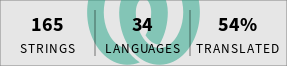
Translate the strings used inside the app via Weblate.
If your language is not already there, add it with tool -> start new translation.
Sentences for recognizing user intent
Translate the sentences used by Dicio to identify a user’s request and to feed it to the correct skill. At the moment this requires manually modifying files in the source code repository. Hopefully in the future a custom translation system, similar to Weblate, will be used for sentences too.
- Fork the main repository and clone the fork using
git. If you don’t know what that means, this and this guide can help. Feel free to reach out for help if you get stuck. - Navigate to
app/src/main/sentences/inside the repository. - If it does not exist already, create a subfolder with the 2- or 3-letter name of your language (in particular, any
ISO-639-compliant language ID is supported). - For each of the skills that have not been translated to your language yet 1, copy the corresponding English file from
en/SKILLNAME.ymlto your language’s folder. If you wish to translate everything, then at the end of this process the list of files under theen/folder should be the same as those in your language’s folder. - Open each of the untranslated skill YAML files and translate the English content. Feel free to add/remove sentences if their translation does not fit into your language and remember those sentences need to identify as best as possible what the user said.
- Do NOT change the name of the copied files, the IDs of the sentences (i.e. the
sentence_id:before each list of sentences) or the IDs of the capturing groups (i.e. the.ID.construct). - To learn about the Dicio sentences language syntax, please refer to the documentation and the example in
dicio-sentences-compiler.
Finally adding the language to the app
-
Once both the Weblate and the sentences translations are ready, add the new language to the app’s language selector. This requires modifying two files. In the following instructions
$iso-language-id$,$ISO_LANGUAGE_ID$and$Language name$are placeholders you should fill in, e.g.en-in,EN_INandEnglish (India).- in app/src/main/proto/language.proto add a new entry to the
Languageenum like so:LANGUAGE_$ISO_LANGUAGE_ID$ = $increasing number$; // $Language name$. Use the previous highest number in the enum incremented by 1 as$increasing number$. The position of the newly added item should make it so that the items are sorted by their language name. - in app/src/main/kotlin/org/stypox/dicio/settings/Definitions.kt add a new item to
languageSetting.possibleValueslike so:ListSetting.Value(Language.LANGUAGE_$ISO_LANGUAGE_ID$, "$Language name$"),. The position of the newly added item should make it so that the items are sorted by their language name.
- in app/src/main/proto/language.proto add a new entry to the
-
Then update the app descriptions so that people know that the language you are adding is supported. The files you should edit are README.md and fastlane/metadata/android/en-US/full_description.txt (the English description for F-Droid).
-
Open a pull request containing both the translated sentences files, the language selector addition and the app descriptions updates. You may want to take a look at the pull request that added German, #19, and if you need help don’t hesitate to ask :-)
-
if you just created the subfolder in the previous step, then none of the skill had been translated before ↩